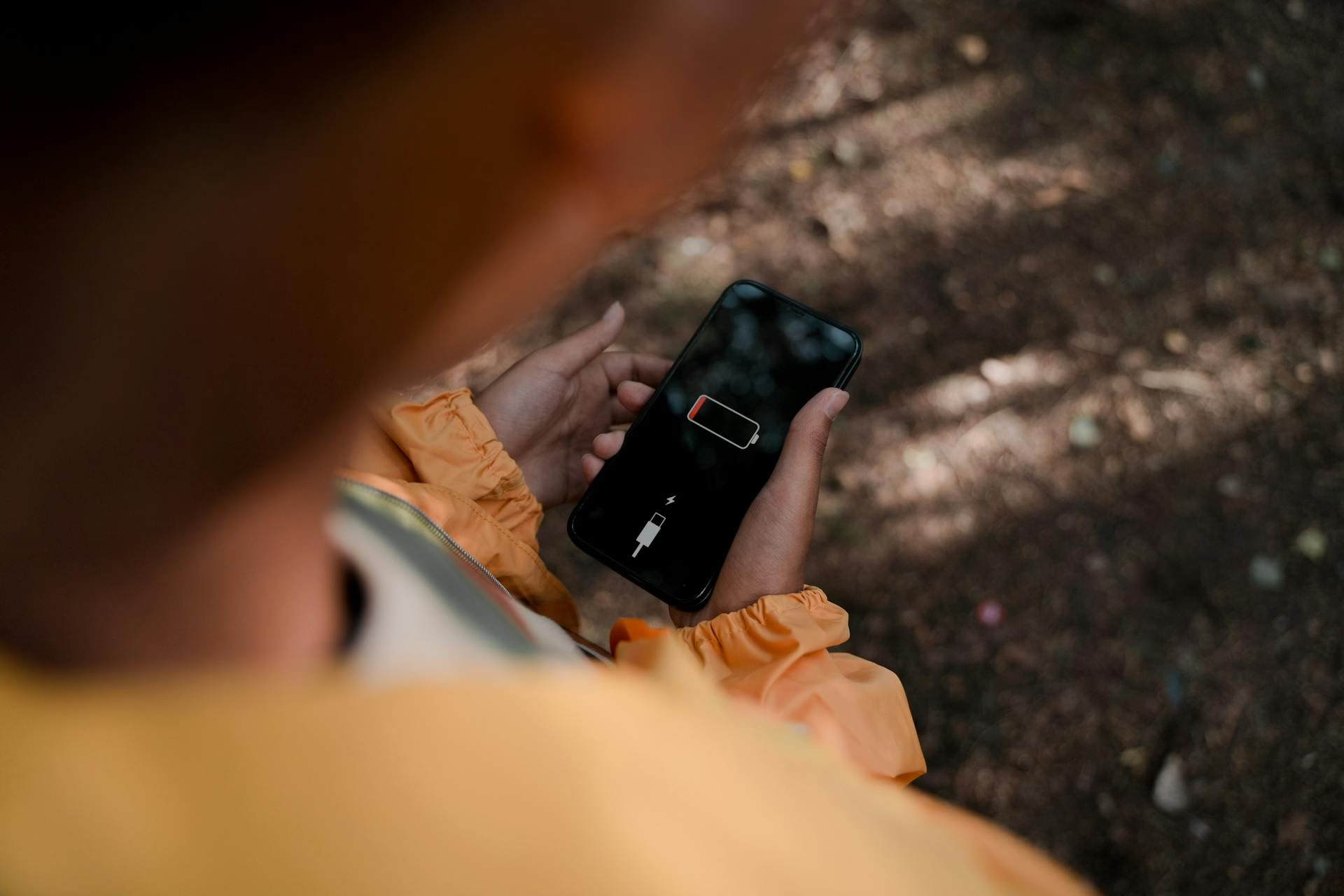
Why Your iPhone Refuses to Go Past 80% (It’s Not Lazy, It’s Smart)
Your iPhone hits 80%, shrugs, and stops charging. Cue the panic — or not. Believe it or not, your phone isn’t being lazy; it’s actually trying to extend its battery life like a wellness influencer sipping a kale smoothie. In this deep dive (with a dash of humor), we’ll explain why your iPhone stops charging at 80% on purpose, how to get that coveted 100% when you really need it, and how to tell if slow charging might be a real issue instead of just your phone doing yoga. Let’s plug in (pun intended)!
Think of Optimized Battery Charging as your iPhone’s built-in battery therapist. Introduced in iOS 13, this feature is Apple’s way of saying, “Hey, I care about your battery’s long-term health.” When enabled, your iPhone intentionally pauses charging at around 80% and chills there for a while. Why? Because keeping a lithium-ion battery at 100% all the time is like keeping a human on high stress 24/7 – it ages them faster. By stopping at 80% and only topping up to 100% right before you typically need it (say, just before your morning alarm goes off), the phone reduces the time it spends fully charged, which slows down battery aging. It’s basically battery mindfulness.
But optimized charging isn’t the only reason your iPhone might hover at 80%. There are a few other factors at play. In Step 1, we’ll break down how temperature, settings, and your charging habits all affect this 80% phenomenon.
Cracked? Dead? Not Charging? Let’s Fix It Today.
Fast, honest phone repairs in Barrie. No mall-kiosk roulette. No weird upsells. Just clear answers and quick turnaround.
Step 1: How Temperature, Settings, and Habits Affect Charging
Several perfectly normal (even smart) reasons can explain why your iPhone won’t charge past 80%:
Your iPhone is Protecting Its Health (Optimized Charging) – As mentioned, if Optimized Battery Charging is on, the phone learns your daily charging habits. For example, if you usually plug in overnight, it will hang at 80% for most of the night and then finish up that last 20% right before you wake. It’s like your phone saying, “I’ll finish charging when it’s go-time, not while I’m just lying here.” This habit-learning means the iPhone isn’t rushing to 100% because it predicts you won’t need a full charge until later. Smart, huh?
It’s Getting a Little Too Toasty – iPhones are divas about temperature. If your device gets too warm while charging, the software may stop charging above 80% to prevent overheating (and to avoid cooking the battery). Heat is a battery’s enemy, so your phone will slow down or pause charging as a self-defense move. Think of it as your iPhone taking a breather in the shade. Once things cool down, it will happily resume charging again. So if you’ve been charging your phone under a pillow, next to a heater, or while running heavy apps, that 80% stall might just be your phone saying, “I need to cool off before we go further.”
Charging Limit Settings – Newer iPhones (like the iPhone 15 series and later) actually let you set a charging limit, often 80%, as a deliberate choice for battery longevity. If you (or the phone’s initial setup) enabled a feature to “Limit Charge to 80%” in Settings, then it will always stop at 80% by design. This is a bit different from Optimized Charging – it’s a hard cap until you change the setting. In essence, Apple gives you the option to treat 80% as the new 100% for everyday charging to really pamper your battery. So, if you see your phone consistently capping at 80% and you’ve never noticed a “Charging delayed” notification, check your battery Settings — you might have an 80% limit turned on.
Your iPhone’s on Heat Strike
When your phone gets too warm, charging halts like it’s protesting. It’s not broken — just being dramatic. Cool it down, then try again.
In summary, habits, heat, and settings can all make your iPhone pause at 80%. Most of the time, it’s a feature, not a bug. Your phone is essentially saying: “I’m not lazy, I’m just smart about my battery health.”
Step 2: How to Override It If You Really Need That Full 100%
Alright, so now you know your iPhone is stopping at 80% out of love for its battery. But what if you don’t share the zen mindset and really need a full tank? Maybe you have a long day ahead, an upcoming road trip, or you’re just feeling better with 100% showing on that status bar. Don’t worry — you can gently nudge your iPhone out of its 80% comfort zone. Here’s how:
Use “Charge Now” on the Lock Screen – The easiest way (if Optimized Battery Charging is the culprit) is to look at your lock screen when your iPhone is stuck at 80%. Often, you’ll see a message like “Charging paused – scheduled to finish by 7:00 AM”. If you can’t wait, simply touch and hold that notification, then tap “Charge Now.” This is basically telling your iPhone, “Hey buddy, I actually need you to charge to 100% sooner.” Your phone will oblige and continue charging up immediately instead of waiting.
Toggle Off Optimized Battery Charging – If you prefer a more permanent override (not recommended unless you truly need it), you can turn off the Optimized Charging feature entirely. Go to Settings → Battery → Battery Health & Charging, and you’ll find a switch for Optimized Battery Charging. Turning it off will make your iPhone charge straight to 100% every time, no more 80% pauses. Keep in mind, though, Apple warns that doing this may age your battery faster over the long run. In other words, you’re trading some long-term battery health for short-term convenience. Use this option wisely (or temporarily).
Adjust the Charge Limit (for iPhone 15 and newer) – If you have one of the latest iPhones with the fancy charge limit setting, you can change that too. Go to Settings → Battery → Charging (or Battery → Battery Health & Charging) and look for the Charge Limit slider. If it was set to 80% (or anything less than 100%), slide it up to 100%. This tells your phone to charge all the way up. You can always re-enable the 80% limit later if you want to go back to battery-life-maximizing mode.
Cool Down the Phone – When temperature is the issue (remember that mini battery vacation at 80% when it’s too hot), the “override” is essentially to cool the phone down. If you suspect your iPhone paused due to heat (for example, it’s charging in direct sunlight or it feels hot to touch at 80%), try moving it to a cooler spot. Take it out of the case if it’s a thick one, turn on a fan, or just let it rest for a bit. Once the device’s temperature drops, it should automatically continue charging past 80%. No setting to toggle here – just give it some chill time (literally).
By using one or more of the steps above, you can coax your iPhone into filling up that remaining 20%. Just remember, if you normally don’t need the extra juice, it’s perfectly fine (even beneficial) to let your phone do its 80%-pause routine. But it’s good to know you’re in control when you truly need a 100% charge. Your iPhone might be on a battery health kick, but it will listen when you say “treat yourself” to a full charge.
Battery Boundaries Are a Thing Now”
That 80% pause? It’s your iPhone doing battery self-care. Override it if you must — but it prefers to chill.
Step 3: When Slow Charging Means a Real Hardware Issue Instead
Now, let’s talk about the flip side: what if your iPhone always struggles to charge past 80%, even under ideal conditions? What if you’ve turned off all the smart charging features, your phone is cool as a cucumber, and it still won’t budge past that pesky 80% mark (or charges excruciatingly slowly beyond 80)? In such cases, your phone might not be practicing battery yoga – it might be crying for help. Here’s how to tell if you have a real hardware or battery problem on your hands:
Optimized Charging is Off, but 80% is Still the Ceiling: If you’ve disabled Optimized Battery Charging (and you don’t have any 80% charge limit set) yet your phone consistently won’t go past ~80-85%, something else is up. Under normal circumstances with optimized charging off, your phone should charge straight to 100%. Stopping around the same point every time could indicate the battery can’t physically hold more charge due to aging or damage.
Battery Health is Significantly Degraded: Pop into Settings → Battery → Battery Health & Charging and check the Maximum Capacity percentage. If your battery’s maximum capacity is very low (say, 80% or below), the phone might behave oddly near the top of the charge range. A degraded battery sometimes charges quickly to a certain percentage and then crawls or stops because that’s effectively all the capacity it has left to fill. For example, a worn-out battery might show 80% on screen but internally it’s essentially “full” relative to its reduced capacity. Also look for any messages like “Your battery’s health is significantly degraded” or “Service Recommended.” If those appear, it’s a clear sign your battery is on its last legs and might need replacing to restore normal charging.
Sudden Drops or Inconsistent Percentages: Another clue is if the battery percentage jumps or behaves inconsistently around the 80-100% range. Say you finally get to 100%, but the moment you unplug, it immediately drops to 85%—this could mean the battery calibration is off or the battery can’t sustain a full charge. Consistent weird behavior at high charge levels often points to a battery issue.
It’s Not the Charger or Cable: Before blaming your iPhone’s innards, double-check your charging equipment. A faulty cable or weak power adapter can slow charging dramatically. Try a different known-good charger and cable to rule this out. However, a bad charger usually affects the whole charging process (it’ll be slow from 0% onward), not just above 80%. If the sluggishness or stuck percentage is mostly at the top end, it’s likely not just the charger.
Dirty or Damaged Charging Port: Sometimes, hardware issues like a dirty or damaged lightning port can limit the charging current. If your port has lint or debris, the connection might be poor once the phone tries to draw higher voltage (which often happens in the later stage of charging). This could make the last 20% charge extremely slow or impossible. Look into the port with a flashlight – if you see gunk, carefully clean it with a toothpick or soft brush. If the port is physically damaged (loose, bent pins), that could definitely cause charging problems and needs repair.
If any of the above has you nodding your head, your iPhone might truly have a battery or charging hardware issue beyond Apple’s smart charging quirks. In such cases, no amount of setting tweaks will fix it – instead, it might be time for a battery replacement or a repair of the charging components.
It's Not Going To Fix Itself
Every day you wait, small damage turns into bigger repair bills. Fast, honest diagnostics in Barrie. No guesswork.
Wrap-Up: Why Barrie Screen Repair Can Fix Your Slow-Charge Problem Before Your Patience Dies
In conclusion, an iPhone stuck at 80% is usually just your phone looking out for itself – a sign that it’s smart, not lazy. Features like Optimized Battery Charging and temperature safeguards are there to help your battery last longer (even if it feels like they’re testing your patience at times). Knowing this, you can relax when you see that 80% stall, or confidently override it when you need a full charge.
However, if you’ve ruled out the smart features and your phone still acts like 80% is the finish line, you might have a hardware problem on your hands. That’s where we come in. Barrie Screen Repair can fix your slow-charge issues faster than you can find another outlet to try. We’re experts at diagnosing whether your iPhone is just in “battery health spa mode” or if it actually needs some TLC (like a new battery or charging port repair).
Don’t let a stubborn 80% charge drive you up the wall. If you’re in Barrie (or anywhere nearby in Simcoe County), drop by our shop and we’ll take a look. We offer fast, affordable phone and tablet battery replacements right here in Barrie. Most battery swaps are done in under an hour, and trust us, your sanity is worth it. Our technicians have seen it all – from iPhones that wouldn’t charge past 60%, to phones that only powered up at a weird angle (turns out it was a bad port). We’ll figure out exactly what’s wrong and get your iPhone back to 100% performance.
So before your patience dies (or your phone does), let us help. Get in touch with Barrie Screen Repair – we’ll have your iPhone charging past 80% and up to 100% in no time, and give that battery the fresh start it deserves. Your phone will thank you, and so will your future self when you’re not frantically hunting for a charger midday.
Battery Not Holding a Charge Like It Used To?
If your iPhone is stuck at 80% or draining fast, a battery replacement in Barrie might be all it needs. Same-day service on most models — no appointment needed.