PS5 Showing “No Signal”? Yeah… It’s Probably the HDMI Port. And Yes, It’s $199.
If your PS5 powers on but shows no signal, there's a good chance the HDMI…

It was a dark and stormy night (or maybe just a random Tuesday), and BAM – a power surge turned your beloved Xbox Series X/S into a temperamental drama queen. One minute you’re gaming blissfully; the next, your console is acting like it’s possessed or auditioning for a tech horror movie. Relax! We’re here to troubleshoot this with humor, clarity, and a touch of wit. Grab a cup of coffee (or Red Bull), and let’s diagnose those post-power-surge Xbox Series X/S woes with a smile.
Your Xbox isn’t just sleeping – it’s in a full-on coma. You press the power button and nothing happens. No lights, no sounds, not even a whimper. It’s like the surge put your console in a deep existential nap.
What happened? A power surge can trip your console’s internal safety fuse or nuke the power supply. Think of it as your Xbox’s self-sacrifice move – better the fuse blows than the whole console literally catching fire. In tech terms, the surge might have blown a fuse on the power supply or motherboard, cutting all power to save the rest of the system. In other words, your Xbox valiantly took a bullet (well, a jolt) for the team. The result? No juice flowing inside, hence the unresponsive black box.
What to do: Before mourning your “bricked” console, check the obvious. Is the outlet actually working? Power surges can trip circuit breakers or GFCI outlets – your Xbox might be fine but your wall isn’t delivering any love. Test the outlet with a lamp or charger, and if you were using a power strip, make sure that didn’t flip its own little breaker. Sometimes the surge protector sacrifices itself to save your Xbox; if it has a reset switch or fuse, reset it, or plug the Xbox directly into a known-good wall outlet to rule that out.
If the outlet’s fine and still no life, you’re likely looking at a blown internal fuse or fried PSU (power supply unit). Unfortunately, that’s not something a quick settings tweak will fix – it’s hardware surgery time. You can try the classic trick: unplug everything, wait a few minutes, and plug back in (weirdly enough, some internal power reset might kick in occasionally). But if it remains as silent as a brick, the console probably needs professional help. The good news (if we can call it that) is that a blown fuse or PSU might have done its job protecting the rest of the console. Replacing a fuse or PSU is cheaper than replacing an entire Xbox (phew!). The bad news: unless you’re handy with electronics, you’ll need a repair shop or warranty service to swap those out.
If you’re one of those brave souls with a screwdriver: you could peek inside for obvious burn marks or a blown fuse. But for most, this is the moment to skip the DIY heroics and consider the repair experts (don’t worry, we’ll plug a friendly one at the end). Until then, don’t keep pressing the power button expecting a miracle – your Xbox isn’t suddenly going to resurrect without some intervention.
If your Xbox won’t power on at all after a surge, 90% of the time it’s a blown PSU or internal fuse—good news, those are fixable.
Maybe your Xbox isn’t totally dead – it beeps or chimes when you press power, you get a momentary flash of hope (literally, maybe a light), and then… nothing. It’s like the console is teasing you: “I’m awake! Just kidding, back to sleep.”
What happened? A power surge can create weird semi-failures. Often, a quick beep-then-shutdown means some internal component is shorted or tripping a protection circuit. The initial beep indicates the Xbox got the “on” signal and tried to start, but then something said “nope, abort mission!” faster than you cancelling a 2 a.m. eBay purchase. Technically, the surge might have fried a power-regulating transistor or another bit on the motherboard. When that happens, the system detects a fault and immediately cuts power to prevent further damage. It’s the equivalent of your Xbox fainting after a surge-induced shock.
Another possibility (slightly less scary) is undervoltage – if the surge was preceded or followed by a drop in voltage, your Xbox could be getting just enough power to beep but not enough to actually boot. Kind of like giving it a sip of espresso when it needed a full cup of coffee. In fact, some users found their Xbox would beep and fail to turn on until they plugged it directly into a wall outlet (no flaky extension cords, please).
What to do: First, power cycle the console completely. Unplug it from power, wait 30 seconds (let it contemplate its life choices), then plug it back in and try again. This can reset internal protection circuits. Many have reported that after a good half-hour “time-out” with the power cord unplugged, the console magically decided to boot up normally again. Hey, sometimes your Xbox just needs a little nap and a fresh start – don’t we all?
If that didn’t work, try the direct-to-wall outlet trick. Remove any surge protectors or power strips (they could have their own issues after the surge). A nice, solid wall connection can ensure it’s not a power delivery problem.
Still no dice? If it continues to beep and then shut off, you’re likely dealing with a hardware fault triggered by the surge. At this point, no amount of restarting is going to fix a blown internal component. Jokes aside, you might have to send your Xbox in for repair or call a technician. The issue could be as deep as a shorted MOSFET (one of those tiny transistor thingies on the board) – not exactly something you fix with a paperclip and goodwill.
Bottom line: A beep-with-no-boot scenario is your Xbox’s way of saying “Something’s wrong inside.” Try the easy resets, but prepare for a possible repair if it’s surge aftermath. At least you got to hear it beep – that’s more personality than a totally dead box, right?
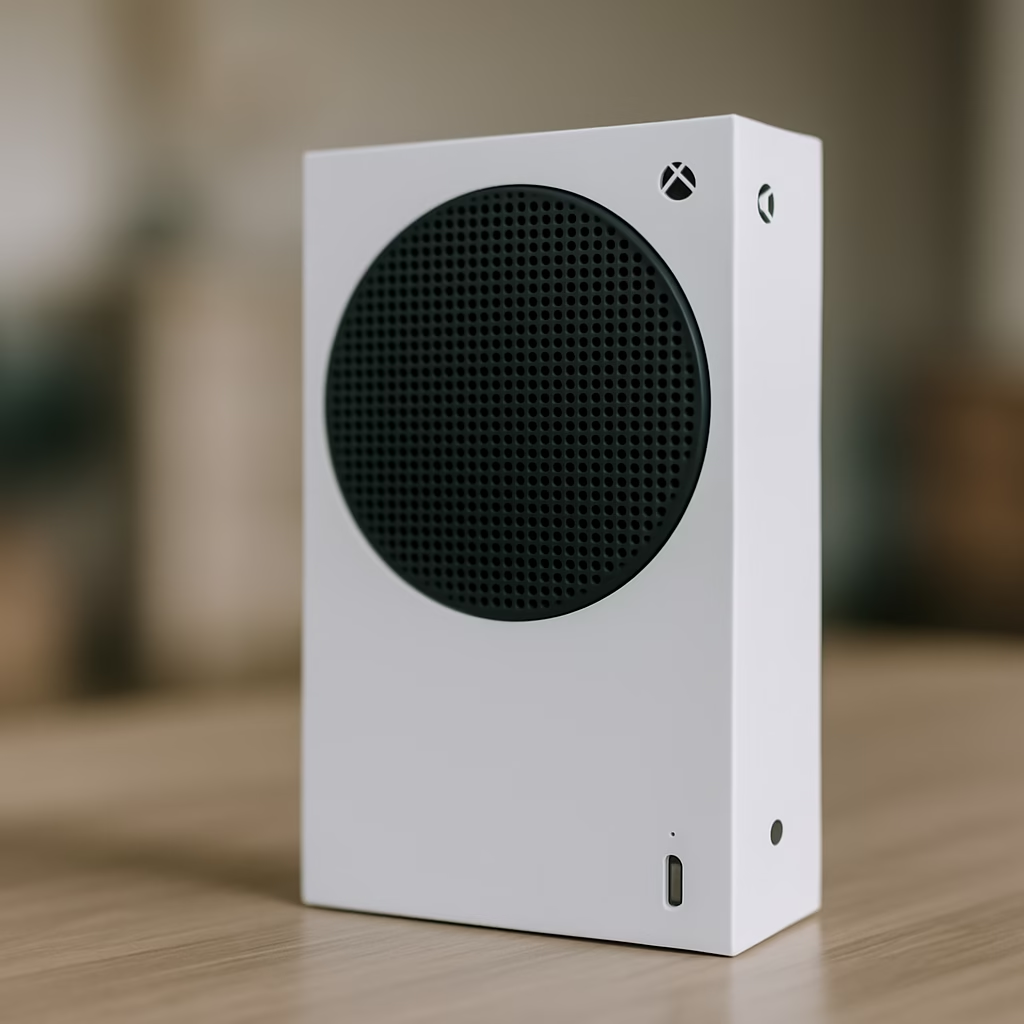
Uh oh, your Xbox’s front power light is blinking at you. Blink… blink… (dramatic pause)… blink. Is it trying to communicate in Morse code? Is this the Xbox’s equivalent of a distress signal? Possibly yes. After a surge, a blinking power light can be the console’s way of saying “I’m not okay, thanks for asking.”
What happened? A blinking or flashing Xbox logo usually means the system is stuck in a sort of limbo. In normal situations, a quick blinking after power-off just indicates background tasks (like downloads) – not a problem. But if your console is blinking and not doing what it should (like actually turning on or off properly), the surge might have caused an internal error state. For example, some Xbox consoles will momentarily light up or blink and then power off immediately when they detect a short or fault on the board. It’s like the Xbox is flashing an SOS and then giving up.
In other cases, your Xbox might blink for an extended period when shutting down, which could mean it’s trying (and possibly failing) to finish some task or update. There’s a chance the surge interrupted something, and now the poor thing is stuck in an “I’m powering down… no really, any second now…” loop. Undervoltage or power supply hiccups can also cause blinking – the console isn’t getting the steady power it wants, so the light just blinks in protest.
What to do: First, don’t panic – a blinking light is often a cry for a simple fix. If the Xbox is currently on (or sorta-on), perform a proper shutdown and restart. Hold the Xbox power button for ~10 seconds to force it off, then unplug the power cable for a minute. Plug it back in and fire it up. This hard reset can clear many blinking-light tantrums.
Next, check your power connections. A loose or half-plugged HDMI or power cord can weirdly cause blinking signals on some consoles. Make sure the power cable is snug in both the Xbox and the outlet. Given the recent surge, maybe try a different outlet entirely to ensure yours isn’t delivering funky current. Remember that Microsoft actually recommends plugging the Xbox directly into the wall, not a surge protector, because the console has its own surge protection and using two in series can sometimes confuse things (or so they say). So if you had it in a power strip, try wall outlet, and vice versa.
If the blinking happens when you try to turn the console off, it might be finishing up downloads or updates. Give it a few minutes – it might resolve on its own once the task is done. But if it blinks indefinitely, that’s not normal.
Watch the pattern of the blink: Is it a steady blink-blink-blink? Or some crazy blinking rave party? Steady blinking could mean an update or standby issue; an irregular blink (or blink then immediate off) is more likely a fault. Unfortunately, if it’s the latter, we circle back to potential hardware damage from the surge. A persistent blinking light that won’t go away despite resets might indicate a deeper problem (in the power circuitry or who-knows-where). At that point, you have our permission to glare at the console and use some choice words – and then call a repair professional.
Black screen + normal startup sounds usually means the HDMI retimer chip blew. The console isn’t dead—it’s just “blind.”.
After the power surge drama, you finally get your Xbox to turn on – but now it sounds like a jet ready for takeoff. The fan is running at full blast, roaring loud enough to scare your cat. Normally, your Series X/S is pretty quiet, but now it’s auditioning for Top Gun. What gives?
What happened? There are a couple of possibilities here, and not all are dire. One is that during the chaos of the surge, your Xbox might not have shut down properly and overheated a bit, so now on reboot the fans are overcompensating to cool things down. More technically, sometimes after a hard power event, the system’s fan control might glitch, defaulting to failsafe mode (full throttle). This can happen if sensors got confused or if the console’s firmware is in a weird state. Imagine your Xbox woke up from a trauma and is now hyperventilating – it’s essentially blowing off steam, literally.
Another scenario: the surge did some damage, but not enough to kill the Xbox outright. Instead, maybe it fried a temperature sensor or a power regulator. When that happens, the console might think it’s way hotter than it is (or not be able to tell at all), causing the fan to run 100% all the time. We’ve seen cases where only the fan responds after a surge while the rest of the console is unresponsive – a sign that some power components failed, leaving the fan as the last man standing. If your fan is constantly at max speed from the moment you hit power, and the Xbox isn’t really booting properly, that indicates a likely hardware fault (caps or power delivery bits could be toast).
But if the console otherwise works (you get video, it boots to dashboard, you can play games) and it’s just the fan that’s loud, the surge might have indirectly caused dust to shift or the fan’s calibration to go wonky. It could even be coincidental – maybe your Xbox was long overdue for a cleaning and the stress of the surge tipped it over the edge into an overheating alert.
What to do: Treat it like an overheating issue first. Shut down the console and let it rest. Make sure it’s in a well-ventilated area (not crammed in a closed cabinet, please). While it’s off and unplugged, give it a gentle cleaning: dust out the vents with compressed air (short bursts, from a few inches away). If there’s visible dust bunnies in the fan intake, that surge could have shaken them loose into the fan blades, making it unbalanced or noisy. Cleaning could help the fan sound and efficiency.
After it’s cooled and cleaned, power it back on and see if the fan calms down after a few minutes. Sometimes the Xbox will spin up loudly at start (self-test) but then settle – that’s normal. If it continues to roar non-stop, check if you have any on-screen warnings. The system usually tells you if it’s overheating (“Your Xbox is getting improper ventilation” messages). No warning, just loud fan? That hints more at a control glitch or sensor issue. Try performing a full system reboot or even a factory reset (keeping games and apps) if you suspect a software glitch – it’s a long shot, but worth it if the alternative is hardware repair.
Unfortunately, if a surge did zap something like the fan controller or a sensor, no software fix will tame that fan. You’d need hardware repair to replace the faulty component. One clue is if the fan starts going turbo immediately at power-on, even from a cold start – that implies the system thinks “OMG I’m hot!” when it isn’t, likely due to a sensor shorted out.
On the bright side, a loud fan is annoying, but at least your Xbox turns on and presumably plays games. So you’ve avoided the worst. If the noise is unbearable and persists, consider having a tech take a look. But do try the easy stuff – cleaning, cooling, resetting – since sometimes an Xbox just needs to shake off the surge hangover.
Your Xbox powers on – perhaps the lights come on, the fan whirrs (maybe not crazily), and the controller even connects – but your TV insists “No Signal.” It’s like the Xbox decided to play ninja and output nothing. You’re staring at a blank screen, wondering if your console secretly entered witness protection.
What happened? Power surges don’t only attack power supplies; they can also fry the HDMI output circuitry. Yes, that tiny innocuous HDMI port on the back – a surge can travel through and zap the chips responsible for sending video to your TV. Often the culprit is the HDMI “retimer” chip (or HDMI IC) – a little silicon bouncer that manages the high-speed video signal. A big voltage spike can blow that chip, or even singe the HDMI port pins themselves. The end result: your Xbox might actually be booting up fine, but it can’t output video, so you get a whole lot of black screen and nothingness.
This is a common tale of woe: the console seems okay (it powers on, maybe you even hear the startup chime or menu sounds if you have a headset on), yet the TV shows zilch. Surge aftermath is a prime suspect here. In fact, console repair pros frequently see cases where after a storm or power event, the console’s power supply survived (so it turns on), but the HDMI port took the hit. Microsoft didn’t exactly build the Series X/S with surge-proof video output – those circuits are delicate.
Specific to Xbox Series X/S, technicians report that surges tend to blow the HDMI ICs on these consoles, killing the video completely. It’s basically the Xbox saying “I can run, but I can’t show you anything.” If your screen is black but the console isn’t turning itself off, you likely have a case of a blind Xbox – it’s on, but it can’t communicate visuals.
A beeping-but-no-boot Xbox almost always indicates a tripped protection circuit. Repeatedly pressing power won’t fix it (but unplugging it for 30 seconds often does).
What to do: First, rule out the simple stuff (we can’t ignore standard procedure, even in a surge story). Try a different HDMI cable and a different TV/monitor input. Hey, it could be a freak coincidence that your cable died or the TV port blew instead of the Xbox. Also, inspect the Xbox’s HDMI port closely – use a flashlight. Do you see any bent pins or scorch marks in there? In some surge cases, the port might show physical damage (in which case, that port is gonzo and needs replacing). If the port looks okay, still no signal with new cable and different display, then odds are the internal HDMI circuitry is fried.
There’s no magical software fix for this. You can try booting your Xbox into low-resolution mode (a trick where you hold the bind and eject buttons, then press power, etc., to see if a basic image comes up). But if the HDMI chip is damaged, even that won’t display. No Signal is no signal, unfortunately.
At this point, it’s likely a “time to see the doctor” scenario. Replacing an HDMI retimer chip or port is a job requiring micro-soldering skills. Not exactly your weekend DIY unless you’re handy with a soldering iron and have microscope eyes. The good news is these parts can be replaced – and it’s a pretty common console repair. The bad news is you’ll probably need to take it to a repair shop or use your warranty (if applicable) to get it fixed.
One more thing: if the surge was really nasty, there’s an off chance it sent a surge through the HDMI to the TV. So check your TV with another device too. If the TV’s HDMI input got fried in the same event, it might not be the Xbox’s fault at all. But in most cases, the Xbox is the casualty here, not the TV.
Preventive tip: After you fix this (or get a new console), please invest in a decent surge protector or, even better, a UPS. It’s like console insurance. We know Microsoft oddly suggests plugging Xbox directly in the wall for power stability, but do use a surge protector for your TV/console setup – HDMI surge damage is real, and a good protector can help absorb the shock (literally). It’s too late this time, but future-you will thank present-you.
We hate to even go here, but we must: sometimes a power surge delivers the big KO punch and effectively bricks your Xbox. “Bricked” means exactly what it sounds like – your $500 console is now as useful as a brick (albeit a very stylish, high-tech brick). This usually happens when a surge overwhelms the system’s defenses and fries critical components on the motherboard or the power supply unit. It’s the worst-case scenario we all dread.
What happened? In extreme surges (like a lightning strike nearby or major power grid spike), the voltage surge can blow past the surge protector, laugh in the face of fuses, and go on to fry multiple components in one go. We’re talking burned-out power regulators, popped capacitors, toasted IC chips – the works. It’s like an electrical tsunami swept through your Xbox’s insides. Often, the first thing to go is the PSU or an internal fuse (as we discussed in “No Power” above). But if the surge was too strong or fast, it can damage the motherboard itself – the main board that holds the brain (APU) and all the vital circuitry.
Signs of a fully bricked Xbox: no power at all, no lights, no fan, no beep – basically a corpse. Perhaps even a faint burnt smell (never a good sign). If you tried all the tricks (different outlet, new cord, resets) and your Xbox still behaves as inert as a rock, we’re likely in bricked territory. Internally, something like a key power management chip could have blown, or multiple areas might be shorted. The console won’t give any error lights because it can’t even power the light to blink – it’s that done. As one repair guide put it, press power, and nothing happens – essentially a bricked console.
What to do: Time to decide how sentimental (and solvent) you are. Motherboard-level damage is not an easy or cheap fix. If your Xbox is under warranty and the surge cause isn’t obvious (you probably won’t mention the surge, right?), you might get a replacement. However, warranties often don’t cover surge damage explicitly (acts of God, etc.). If not warranty-covered, you’ll need a professional repair and it might cost a hefty portion of a new console’s price – especially if the whole motherboard needs replacing.
That said, don’t assume all is lost without an expert diagnosis. A console repair shop might find that only the PSU is dead (which is relatively easy to replace), or that a single component on the board can be replaced to revive it. For instance, we’ve seen cases where just one fuse or one MOSFET blown can keep the Xbox dead, and swapping that out brought it back to life. So, it’s worth getting a quote for repair if you can.
In the meantime, unplug the console and leave it unplugged. If something is shorted inside, leaving it connected to power isn’t wise – it could potentially cause more damage or be a safety hazard. Also, don’t open it up and start poking unless you know what you’re doing. The Series X/S are complex beasts; it’s not as simple as replacing a PC part. You don’t want to accidentally turn a possibly-fixable board into a definitely-unfixable one by static shocking it or ripping a tiny component off.
Coming to terms with a bricked console is tough love. We feel your pain – the anguish of seeing that hunk of gaming goodness refuse to wake up. Take a moment if you need to (a primal scream into a pillow is therapeutic). But who knows, maybe the next great family heirloom is a trendy Xbox-as-bookend decor? (Kidding. Mostly.)
In summary: if everything else in this guide fails, and your Xbox Series X/S remains bricked after a surge, it’s likely time for professional help or a console upgrade. Let’s hope it doesn’t come to that for you.
The Xbox Series X/S doesn’t have a “Rest Mode” exactly like the PS5 – but it has Instant On (standby), where the console sleeps lightly, ready to wake for updates or voice commands. If your console was in this low-power state when the surge hit, you might encounter some odd behavior afterwards. Maybe it didn’t turn on properly next time, or it acted like it had a hangover – slow, confused, needing to “repair” something. Let’s discuss those quirky issues.
What happened? Imagine being jolted awake from a nap by a fire alarm – you’d be disoriented too! A surge or outage during standby can interrupt the Xbox in the middle of housekeeping tasks. The console might have been updating a game, syncing saves, or just maintaining network connection. A sudden power loss = system state not saved properly. Fortunately, Xbox consoles are designed to handle abrupt power-offs better than a lot of devices. In many cases, when power returns, the Xbox will simply do a quick self-check and be fine. No, it generally won’t explode or fry just because it was in Instant On. But you might see things like: it takes longer to boot, you get a message that it wasn’t shut down properly, or it had to “repair” the storage when it started up (fixing any corrupted data).
Some users note that PlayStations often do a database rebuild after a bad shutdown; the Xbox is a bit less melodramatic. It might not even show a warning – it’ll just quietly check itself on startup. However, if the surge was part of a larger outage, you could have experienced a scenario where the console tries to resume but can’t. Perhaps Quick Resume (that nifty feature keeping your game states) lost its mind – your suspended games might have gotten purged or won’t resume correctly. Worst-case, if the surge hit exactly during a system update, you could have a firmware corruption (rare, but possible) that needs to be addressed.
Symptoms to look for: Console starts up to a troubleshooting menu, or says something like “Preparing console” or “Repairing installation” – that means it detected data corruption and is attempting to fix it. Or maybe everything starts fine but one of your games says it’s corrupted and needs a reinstall – that could be from the abrupt cut-off in rest mode. Also, the console might have forgotten some settings (like your network or boot mode preferences) if the standby state got abruptly nuked.
What to do: Generally, let it do its thing. If the Xbox throws up a repair screen, follow the prompts. They usually involve restarting or, at worst, performing an offline system update or reset. If it boots normally, but you suspect something’s off, a good measure is to do a full shutdown and cold boot anyway (to clear any half-glitches lingering from Instant On). Go into settings and disable Instant On for now (switch to Energy Saver mode which fully powers down after use). This ensures that until your power situation is stable, the console will always shut down fully rather than sleep.
If Quick Resume is acting funky (games not resuming or crashing), don’t panic – the feature can hiccup even without power surges. You might just need to manually launch games (not from their suspended state) or in some cases, clear the Quick Resume cache (the Xbox doesn’t give a super easy UI for that, but opening a bunch of different games will push the old ones out).
Should you find that the console won’t wake from standby at all (you press the controller, nothing; had to unplug to reset), that might have been a one-time fluke. However, keep an eye on it. If it consistently has trouble coming out of standby after power events, maybe avoid using Instant On in stormy seasons or get a UPS battery backup to smooth those outages.
In short, rest mode issues from a surge are usually temporary confusion, not permanent damage. It’s your Xbox rubbing its eyes and muttering “What the heck was that?!” after being startled awake. Be gentle – give it time to reboot and sort itself. If problems persist (like every boot is problematic), you may have deeper system software damage, which leads us to…
If your Xbox fan hits 100% from a cold start, that’s a sensor or voltage fault—not overheating. A surge can confuse the fan controller.
Power surges and sudden outages are mortal enemies of data. If the surge struck while your Xbox was in the middle of writing something to its internal storage (say, downloading a game, saving progress, or heaven forbid, updating the system software), you might end up with some corrupted data. This can manifest in various annoying ways: maybe your console boots up with an error code, or your dashboard is fine but one of your games/DLCs is “broken” and won’t launch. Perhaps you get a message that the Xbox needs to update but fails every time, or it reports that the storage is corrupted.
It’s like an electronic hangover – the data got scrambled, and now the Xbox feels a bit sick.
What happened? During a sudden loss of power, any read/write operations to the SSD can get cut off mid-way. The Xbox uses a robust file system, but even those aren’t immune to abrupt power loss. You could have a situation where a game’s data got half-written (thus unreadable), or the system files did and now the OS is confused. In extreme cases, the Xbox might not boot into the normal dashboard at all – it might show the “Something went wrong” troubleshooting screen with options to reset or offline update. That’s a sign the OS itself got corrupted.
Additionally, surges can upset the internal clock or CMOS (though in consoles it’s not as noticeable as in PCs). Maybe your Xbox lost track of time/settings, which could cause weird behaviors until it syncs again online.
What to do: This one’s less about humor and more about patience. If a particular game or app is corrupted, you’ll likely need to delete and reinstall it. Yeah, re-download that 100GB game – not fun, but it beats not playing at all. If you see an obvious error message like “Storage drive needs to be repaired” or “corrupted data”, the system might prompt you to let it fix things. Always worth a shot to let it attempt a repair.
For system-level issues, try the built-in recovery options. Boot the console into the Xbox Startup Troubleshooter (by holding down Bind + Eject when turning it on, until you get the troubleshooting menu). From there, you can try options like “Reset this Xbox” (you can choose to keep your games and apps, which just reinstalls the system software) or even an Offline System Update if you have the OS file on a USB. This is kind of the “Reinstall Windows” equivalent for your console – it ensures the core system isn’t corrupted.
If your Xbox is mostly fine except some quirk, a factory reset (again, you can keep games & apps to save download time) often clears weird issues. Just remember you’ll need to sign in again and such. Make sure your saves are synced to cloud (they usually are if you’ve been online).
Also, check your external storage (if any). If you had an external hard drive connected that lost power during the surge, it could have corruption. Sometimes an Xbox will hang or be slow if a connected drive is having issues. Try disconnecting any external storage and see if performance/errors improve.
One more tip: after a rough power event, it’s a good idea to do a manual check for updates on your Xbox (Settings > System > Updates). If the surge interrupted an update, you might find a new update is available to download and install cleanly.
System corruption is frustrating, but the Xbox gives you tools to recover. Worst-case, a full factory reset will usually get you back to a clean slate (you’d just have to reinstall your stuff). It’s a pain, but think of it as giving your Xbox a spa day – sometimes it needs a fresh start.
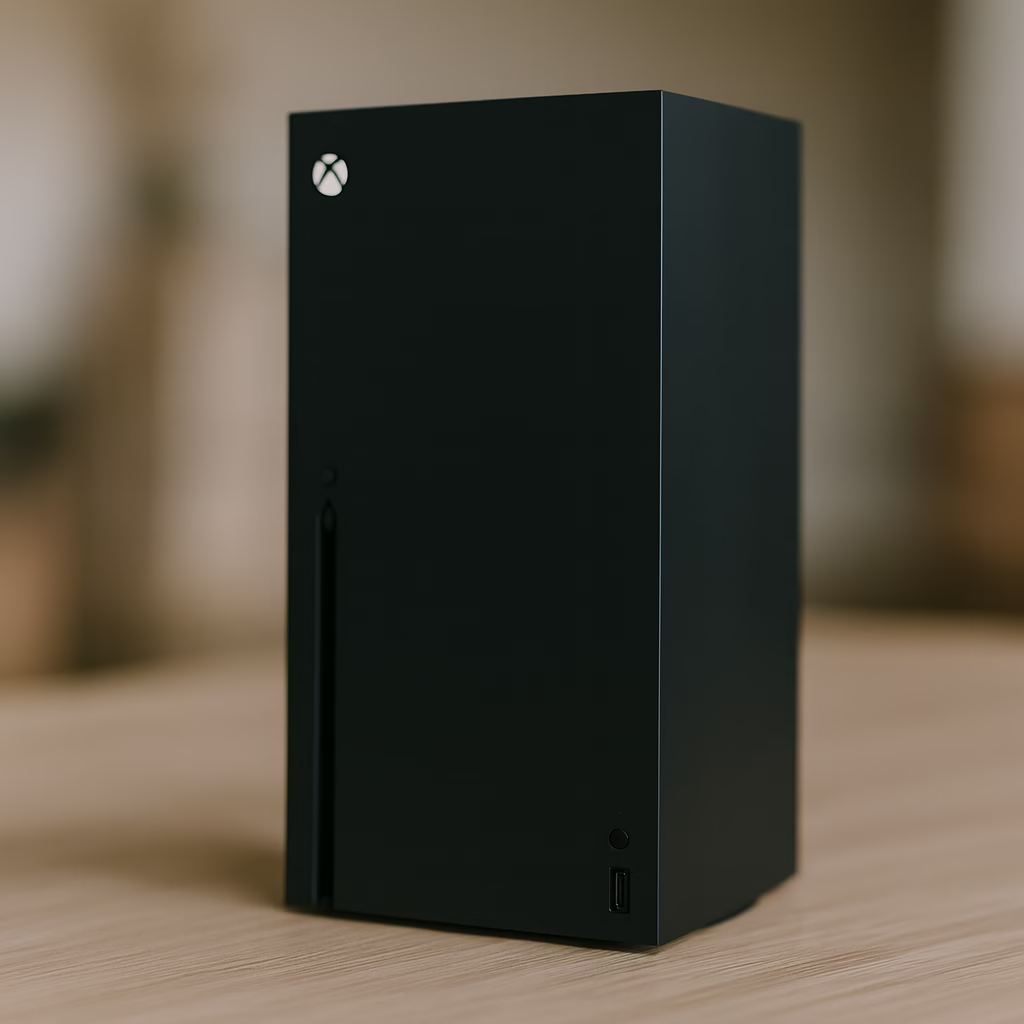
Here’s a curveball: after the surge incident, your Xbox controllers start acting weird. Maybe they won’t connect to the console, just blinking endlessly. Or they disconnect randomly, as if the Xbox forgot they exist. You’ve got what we call controller syncing drama. It’s like your Xbox has amnesia and doesn’t recognize its trusty sidekicks.
What happened? Power surges primarily hit the power circuitry, but they can indirectly mess with other things. If the console shut off abruptly, the controller pairing (which is usually retained in memory) might have gotten confused. Especially if the controller was active during the surge, it may have gotten a desync. Another angle: if the Xbox’s wireless module (the radio that talks to controllers) took any electrical shock, it could behave oddly. Not common, but not impossible – a surge could spike through USB or other pathways and tickle the wireless chip. The result is the controller flashing like a lonely lighthouse, unable to connect.
Often though, controller syncing issues post-surge are more of a software hiccup. The Xbox’s Bluetooth/Wireless might just need a reset.
What to do: First, do the basic resync: Press the small Pair button on the Xbox console (the one with the three curved lines icon) until the Xbox logo blinks, then press the Pair button on the controller (near the charging port) until its Xbox button blinks rapidly. They should hunt each other down and reunite (aww). If that works, great – the surge just gave them a temporary identity crisis, now resolved.
If the controller still just blinks and blinks without connecting, try syncing via a USB cable. Plug the controller to the Xbox with a USB cord; this often forces a sync. Once it’s connected, you can remove the cable and it should stay synced (hopefully).
Swap batteries or recharge the controller, because low battery can coincidentally cause disconnects (and the timing might just be ironic). A blinking controller often simply means “I can’t connect properly”, which can be due to low battery or lost sync. So eliminate the obvious causes.
Now, if multiple controllers aren’t syncing, that points back to the console. Try a full console reboot (yes, again – turning it off and on cures many ills). You might even consider doing a cache clear: hold the power button for 10 seconds to turn off, unplug power for 30 seconds, then boot up. This refreshes the system’s state.
In rare cases, you might need to update your controller firmware. If your console didn’t complete some update (maybe it was mid-update when the surge hit?), the controllers or console firmware might be slightly out of whack. Check in Settings > Devices & Connections > Accessories, select the controller, and see if “Update” is available. Do that with a USB cable plugged in, just to be safe.
If none of this works and controllers still won’t stay connected, the wireless hardware could be damaged. How to tell? If even a wired connection (USB cable) is unstable, or other weird stuff like Wi-Fi issues on the console coincide (since Wi-Fi and controller radio are separate modules but a big enough surge could hurt anything), then yeah, something internal might be fried. At that stage, you could try using an Xbox controller with a USB cable permanently as a workaround (not ideal, I know) or seek repairs for the wireless board in the Xbox.
Usually though, controller syncing issues are fixable with re-pairing. Don’t forget: a blinking Xbox controller basically means it’s desperately trying to connect. So make sure the console is actually on (had to state the obvious), and not in some weird limbo. If the console is fine, a little patience and pairing rituals should bring your controller back into the fold. If your Xbox is now possessed and refuses all controller connections… well, you’ve got a real ghost in the machine – might be time for that professional exorcism (ahem, repair).
After a major power event, avoid Instant On for a few days. Full shutdowns protect the system while things stabilize.
Congratulations – you’ve survived the gauntlet of Xbox Series X/S power surge issues! We’ve laughed (perhaps cried) through the diagnostics, and hopefully you now have a clearer idea of what’s wrong with your console. By now you’ve either fixed the issue, or at least identified that it’s beyond a quick home remedy.
So, what’s next if your Xbox is still on the fritz? It might be time to call in the pros. A power surge can cause some deep tech scars, and not every issue is DIY-friendly (looking at you, fried HDMI chip and bricked PSU!). A skilled technician with soldering tools can often bring a “dead” console back to life – they’ve seen it all, and they have the steady hands and spare parts your Xbox needs.
If you’re reading this and happen to be in our neck of the woods (Ontario represent! 🇨🇦), we’ve got your back. Barrie Screen Repair – yes, that’s us, and despite the name we handle more than just screens – is happy to take a look at your ailing Xbox. We deal with these surge aftermath scenarios all the time. Consider this a soft, friendly plug: We’ll diagnose your console, give it the TLC (tender loving console-care) it deserves, and do it with a smile. No hard sell, just real talk: sometimes you need an expert checkpoint to get you back in the game.
For those not nearby, no worries – take this advice to your local repair shop or that tech-savvy friend who owes you a favor. The key is, don’t give up on your console just yet. Xboxes are built tougher than you think. With the right fixes, that surge will be a soon-forgotten plot twist in your gaming saga, not the end of the story.
Final Tip: Moving forward, invest in a quality surge protector or UPS, and unplug your console during big storms. It’s like giving your Xbox a helmet before the electrical battle – prevention is easier than repair.
Stay safe, stay humorous, and may your Xbox Series X/S live to game another day, surge or no surge. And if all else fails – well, we’ll see you at Barrie Screen Repair with a cup of coffee and a plan to revive your console. Happy gaming!